Associating Food & Drink with Stock
ToFood addand drink items in your menu can be associated with corresponding stock itemsitems. toSometimes the system,link chooseis theone-to-one, 'Stocksuch Inventory'as optionfor froma thecan 'Tools'of menu.drink, Theand sometimes a menu item is composed of several stock inventory editor looks like this:
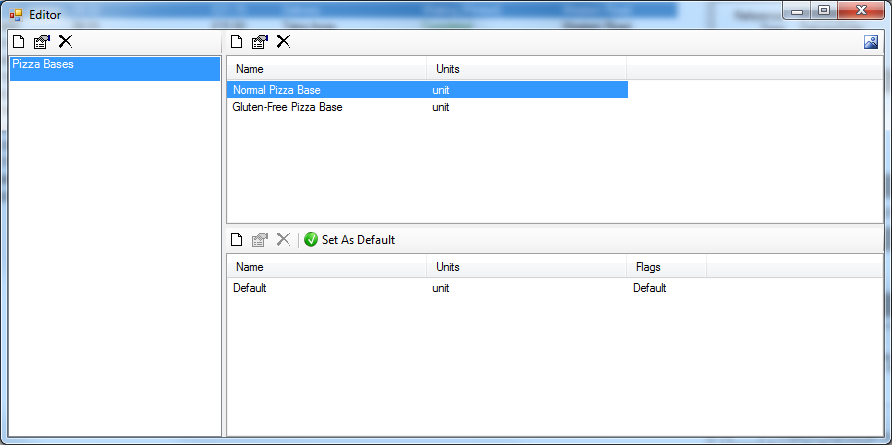
The leftmenu listeditor areprovides groupsa ortool categories.to The top list onsimplify the rightprocess areof associating food and drink with stock, called the itemsStock withinAssociation that category. The bottom list on the right are varieties of that item. Varieties are different 'types' of the same item. For example, you might have 'Tomato Pizza Sauce' as an item, but you sometimes buy different brands from different suppliers in different quantities. Varieties do not represent different types of item, such as tomato sauce and BBQ sauce - these should be distinct items. There must always be at least one variety of every item, but most of the time it is sufficient to add a 'default' variety.Wizard:
ThereIMAGE areOF controlsWIZARD above each list for adding, editing removing the items withinBUTTON
WhenYou youwill addsee ora editlist of all your menu items, and initially an empty space next to each item:
IMAGE of default
Simple Items
To link a menu item to a stock item, yousimply willstart seetyping this window:
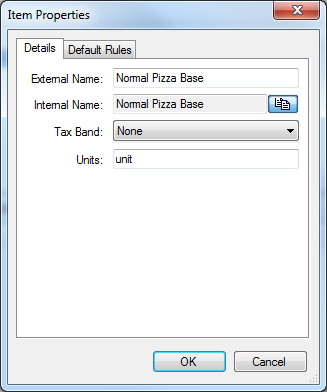
Enter athe name for the item,stock anditem in the empty column next to the name of the unitmenu initem. whichIf you already have some stock items, Vantage will suggest matching items. If there is no suitable suggestion, type the itemname isand measured,press forRETURN example 'can', 'kg' or 'unit'. The 'Rules' tab is only for selling stock, so nothing needs to be done there.
Once you have an item, you should add at least one variety to it. When you add or edit a varietyand you will see thisa window:prompt to create a new item.
ThisTo windowdemonstrate, allowswe namingwill link a simple item on this account, 'Bar Snacks -> Ready Salted', to a stock new stock item. To do this we will type ' next to this menu item and press enter:
IMAGE of typing
We are prompted to create a new item with the same name:
IMAGE of prompt
For this simple example we can just accept all of the variety,default options for the new stock item:
IMAGE of properties
Because selling one packet of crisps should exactly use one packet of crisps from stock, we will leave the Quantity column as 1, and this example is complete.
Complex Items
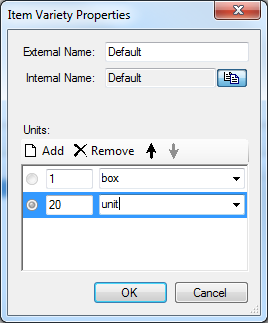
As a more complex detailsexample, aboutwe thewill quantityuse inCarlsberg. whichThe menu has both pint and half pint items, but both of these items draw from common stock. Also whilst it is purchased.sold Inin pints, it is purchased in kegs, so we need to tell Vantage the example,relationship Ibetween have said that this variety comes in boxes of 20these units. This is optional, and if you want to keep it simple, you can just leave the default units there.
Associating StockStarting with Food Products & Meals
Once you have stock items set up, you can associate stock with food items so that sales of food will affect your stock levels. To do this, use the 'Foodpint Menumenu Editor'item, optionenter Carlsberg in the 'Tools'Stock menu.Item Thecolumn editorand looksaccept creating a new stock item:
IMAGE of carlsberg
We will modify the Units section to look like this:
UsingHere the relationship between units is expressed; 1 keg contains 88 pints. The two columns at the start tell Vantage how to track and display the units. The first column with the filter icon is the unit that should be used for tracking stock levels - in this case pints have been chosen. The second column is the unit preferred for display purposes, in this case keg has been chosen. Click OK to save this item.
The row for the pint menu item is now correct. To set up the association for the half pint item, start typing 'Carlsberg' into the column next to the half pint item. After a few letters, Vantage will suggest the item we just created:
IMAGE of suggestion
Accept the suggeston. The half pint menu item is now linked to the same stock item as the pint, however the quantity is not yet correct. Change the quantity to 0.5 to show that this menu item should use 0.5 of the stock item, measured in pints. The two rows should end looking like this:
IMAGE of both rows.
Manually Editing Multiple Ingredients
If you have menu items that require many ingredients in different amounts, you can manually adjust the stock ingredients of any menu item.
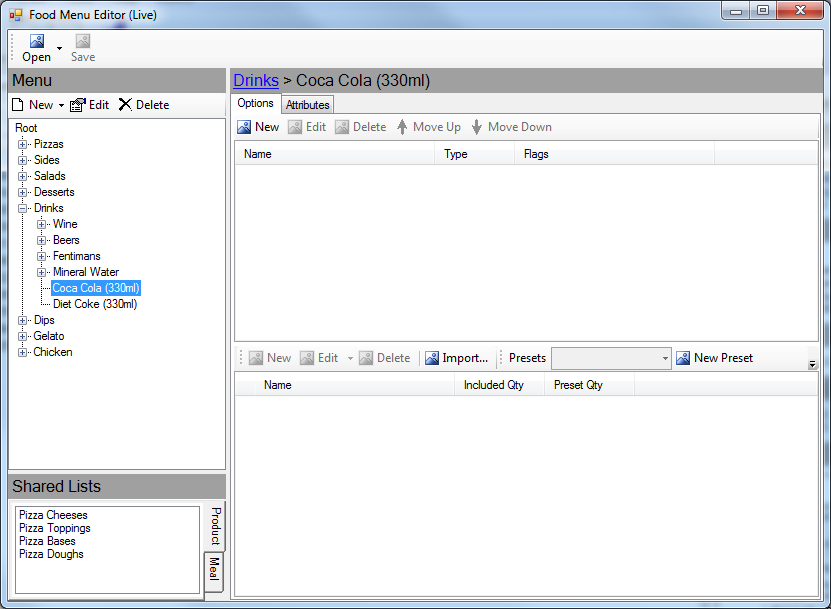
In the menu editoreditor, is another topic to be covered elsewhere. We will just cover associating food with stock
Selectselect a food item in the tree on the left, and click the 'Edit' button above. You will see the product (or meal) properties window, which looks like this:
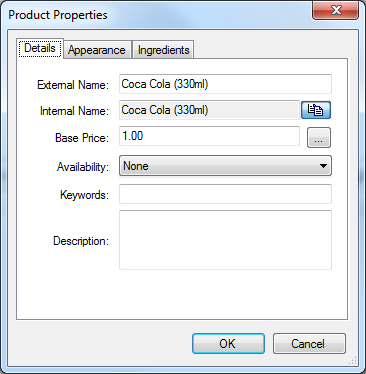
We are only interested in the 'Ingredients' tab at the top. Switch to it, click the 'Add' button, then choose 'Stock Item'
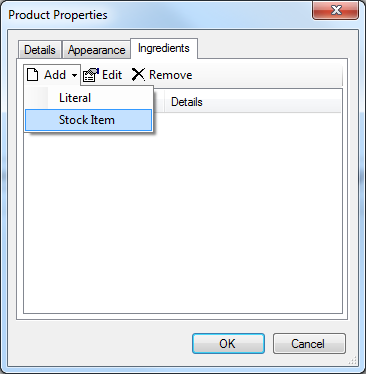
You will then see this window:
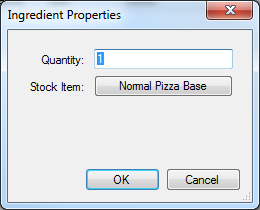
Click the button to choose the stock item to associate with the food item. In the example, 'Normal Pizza Base' was selected. Enter a quantity of the selected stock item to be consumed for every food item sold. The quantity should be in the units you set up when you created the stock item. For example, if we were associating stock with a pepperoni pizza topping, the topping stock item was set in 'kg' units, and you wanted 100g to be used each time the food item is sold, enter '0.1'.
Associating Stock with Food Options
So far we have associated stock with a food product or meal. This means that every time that product or meal is sold, stock will always be consumed.
In many cases, the stock consumed should depend on the options that the customer chose. In these cases, we must associate the stock item with the food options. Most of the process is the same, except started in a different way.
To associate stock with an option in one of the shared options lists, such as pizza toppings, click the list in the bottom left, choose the appropriate option on the right side, and click the edit button above the options. That will look like this:
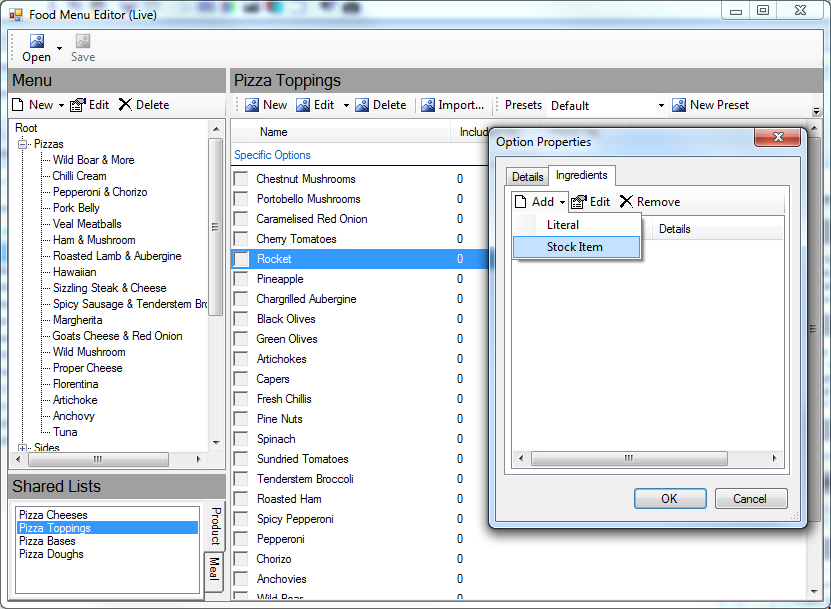
To associate stock with an option in one of the products, select the product, choose the desired option list, select the option, and click the 'Edit' button above the options. That will look like this:
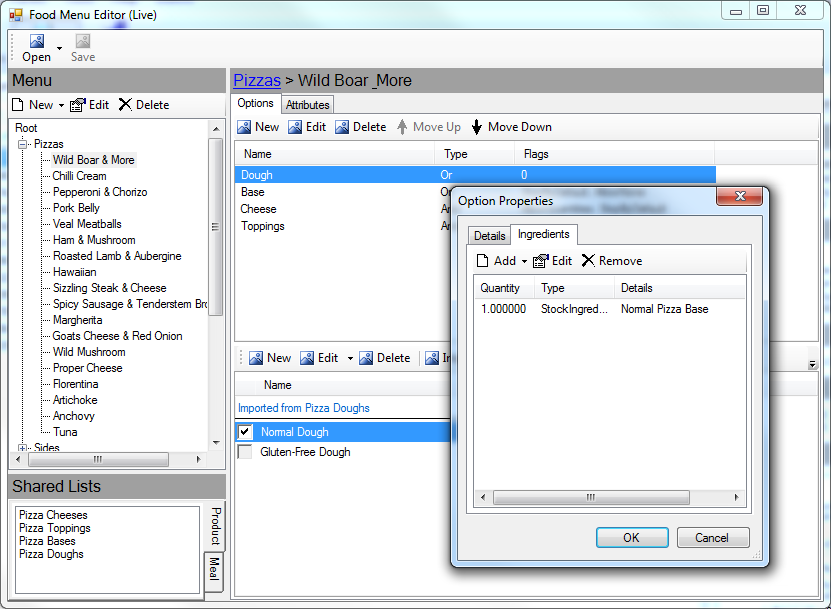
In that example, it has been set up so that choosing 'Normal Dough' on the 'Wild Boar & More' pizza will consume 1 'Normal Pizza Base'.