Refunding Orders
Whilst orders are still open (not yet paid), you may edit their contents and payments at any time. However, one an order is completed, it can no longer be changed. If you wish to refund all or part of an order that has been completed, you will need to use the refund function on the till.
Selecting the Order
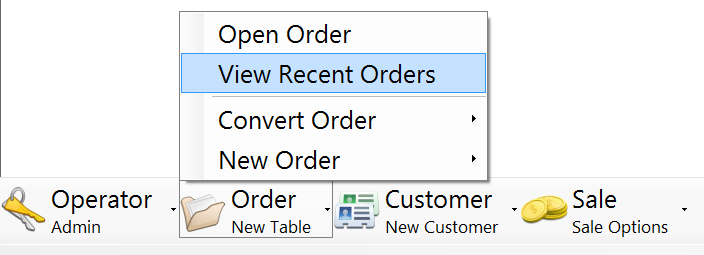
To start a refund, choose 'View Recent Orders' from the 'Order' menu at the bottom of the screen:
This screen shows all recent orders, regardless of whether they are completed or not, in time order with the most recent at the top. It looks like this:
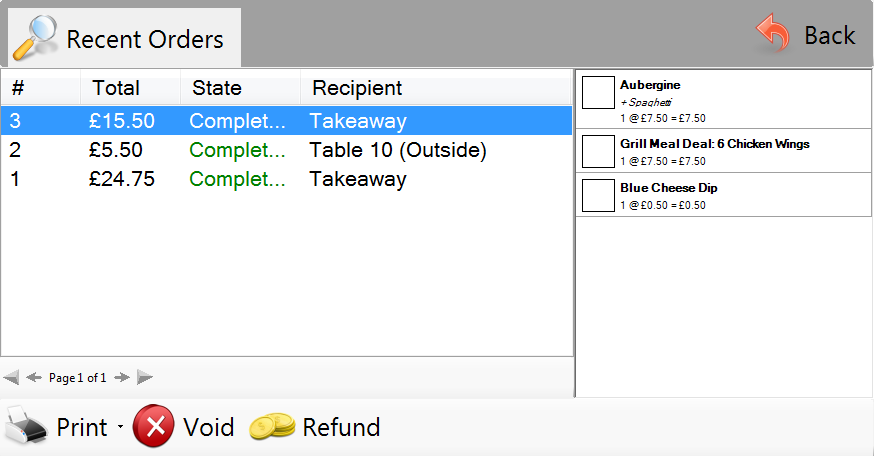
Select the order you want to refund, then click the 'Refund' button at the bottom of this screen. You will need to have the appropriate user permissions in order to proceed with this function.
You will see the following window appear:
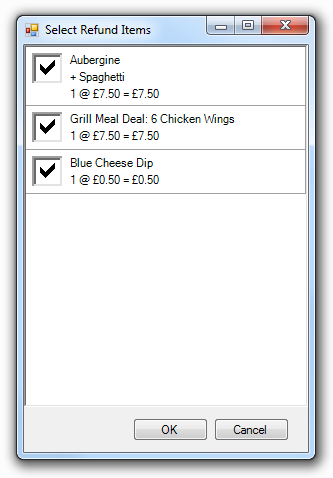
This window lists all items that are in the selected order. By default, all items are ticked, which means that the entire order will be refunded. To refund only part of an order, touch the check boxes so that only the items you want to refund are ticked. When the correct items are ticked, click the '*OK*' button.
You will see a screen that looks like the usual till payment screen. In a refund, processing payments is the only option available.available:
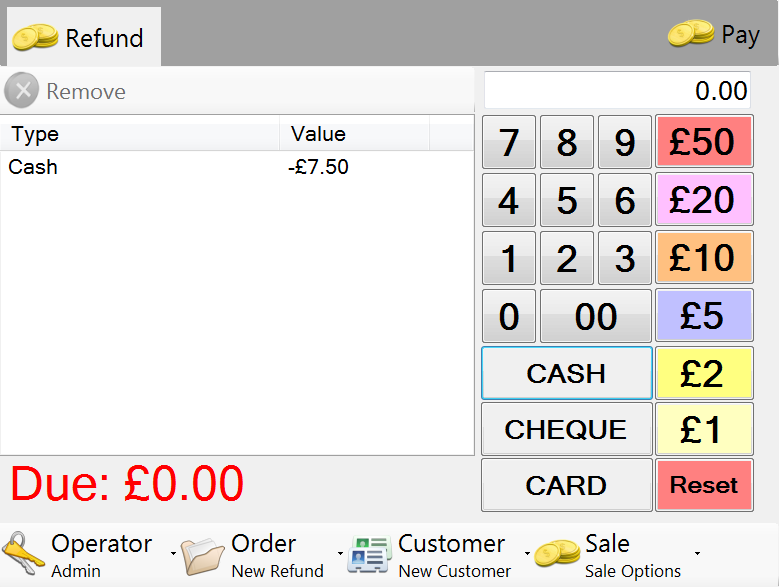
The total at the bottom of the screen shows the total amount that is due to be refunded. You should then enter payments to meet the refund amount.
To quickly refund the exact amount with one method, for example cash or card, simply press the '*Cash*' or '*Card*' buttons on the right side.
After payments have been entered, press the '*Pay*' button in the top right to complete the transaction. A new order will be created with a negative value, equal to the amount that is being refunded.