Associating Food & Drink with Stock
To add stock items to the system, choose the 'Stock Inventory' option from the 'Tools' menu. The stock inventory editor looks like this:
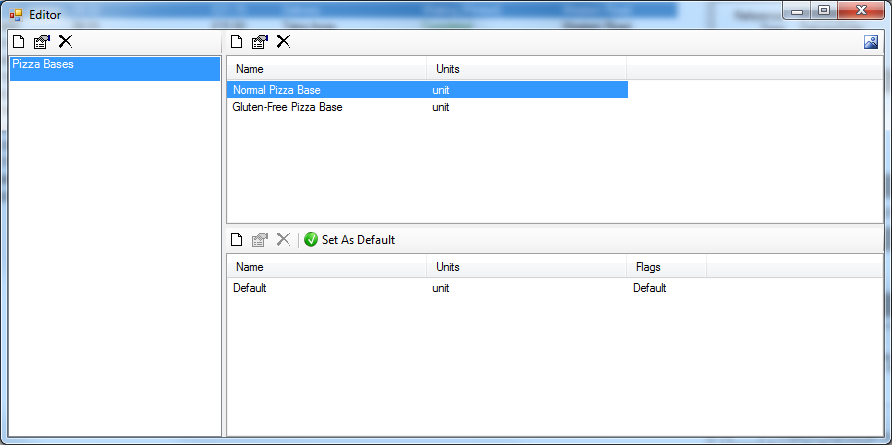
The left list are groups or categories. The top list on the right are the items within that category. The bottom list on the right are varieties of that item. Varieties are different 'types' of the same item. For example, you might have 'Tomato Pizza Sauce' as an item, but you sometimes buy different brands from different suppliers in different quantities. Varieties do not represent different types of item, such as tomato sauce and BBQ sauce - these should be distinct items. There must always be at least one variety of every item, but most of the time it is sufficient to add a 'default' variety.
There are controls above each list for adding, editing removing the items within
When you add or edit a stock item, you will see this window:
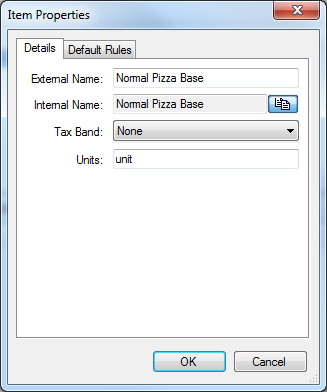
Enter a name for the item, and the name of the unit in which the item is measured, for example 'can', 'kg' or 'unit'. The 'Rules' tab is only for selling stock, so nothing needs to be done there.
Once you have an item, you should add at least one variety to it. When you add or edit a variety you will see this window:
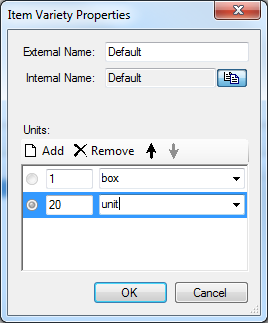
This window allows naming of the variety, and more complex details about the quantity in which it is purchased. In the example, I have said that this variety comes in boxes of 20 units. This is optional, and if you want to keep it simple, you can just leave the default units there.
Associating Stock with Food Products & Meals
Once you have stock items set up, you can associate stock with food items so that sales of food will affect your stock levels. To do this, use the 'Food Menu Editor' option in the 'Tools' menu. The editor looks like this:
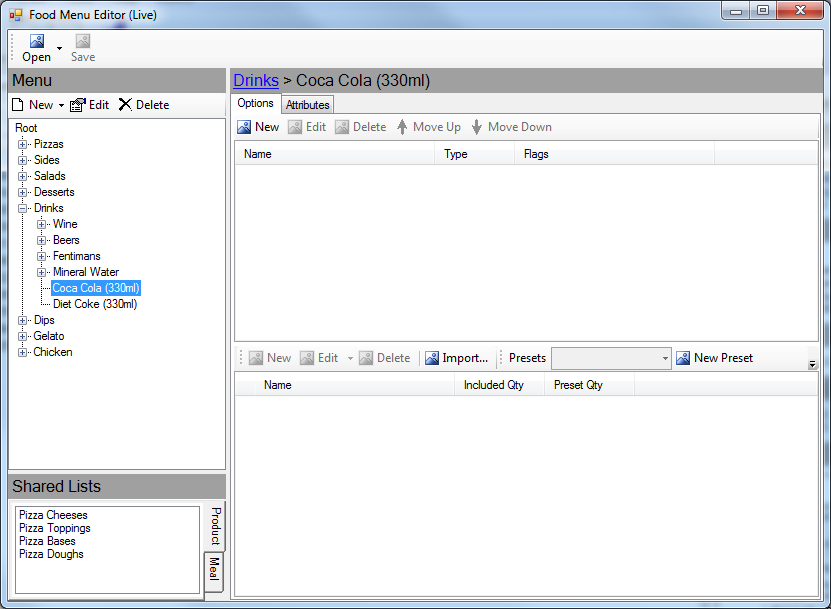
Using the menu editor is another topic to be covered elsewhere. We will just cover associating food with stock
Select a food item in the tree on the left, and click the 'Edit' button above. You will see the product (or meal) properties window, which looks like this:
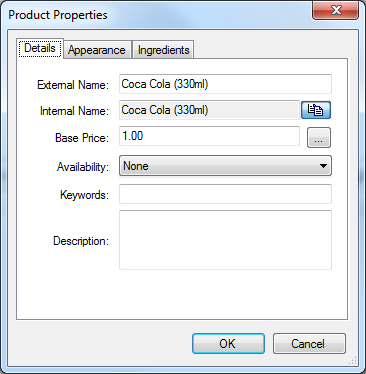
We are only interested in the 'Ingredients' tab at the top. Switch to it, click the 'Add' button, then choose 'Stock Item'
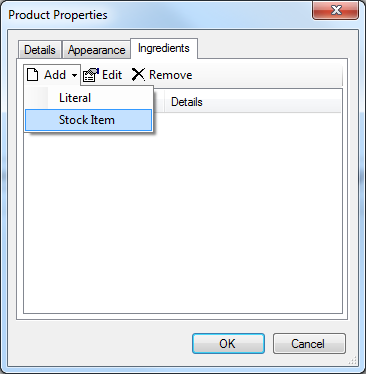
You will then see this window:
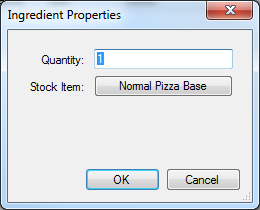
Click the button to choose the stock item to associate with the food item. In the example, 'Normal Pizza Base' was selected. Enter a quantity of the selected stock item to be consumed for every food item sold. The quantity should be in the units you set up when you created the stock item. For example, if we were associating stock with a pepperoni pizza topping, the topping stock item was set in 'kg' units, and you wanted 100g to be used each time the food item is sold, enter '0.1'.
Associating Stock with Food Options
So far we have associated stock with a food product or meal. This means that every time that product or meal is sold, stock will always be consumed.
In many cases, the stock consumed should depend on the options that the customer chose. In these cases, we must associate the stock item with the food options. Most of the process is the same, except started in a different way.
To associate stock with an option in one of the shared options lists, such as pizza toppings, click the list in the bottom left, choose the appropriate option on the right side, and click the edit button above the options. That will look like this:
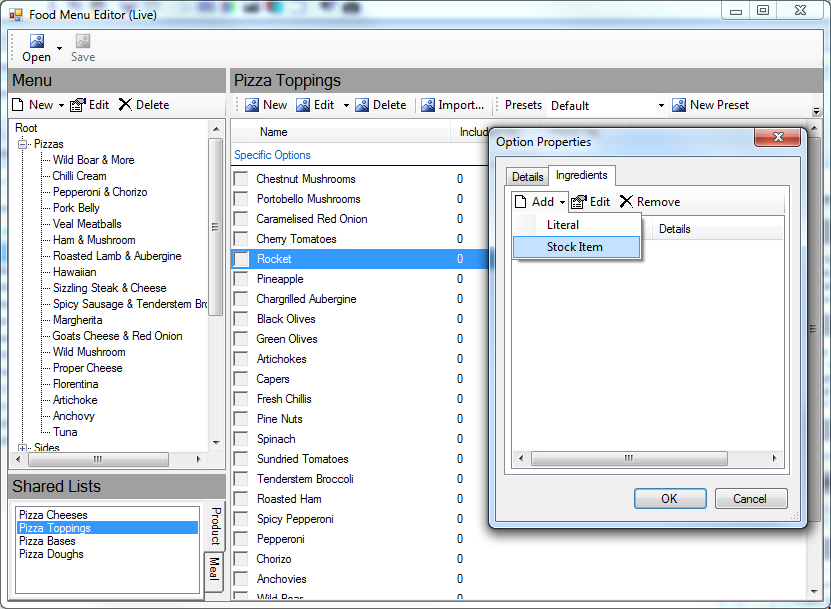
To associate stock with an option in one of the products, select the product, choose the desired option list, select the option, and click the 'Edit' button above the options. That will look like this:
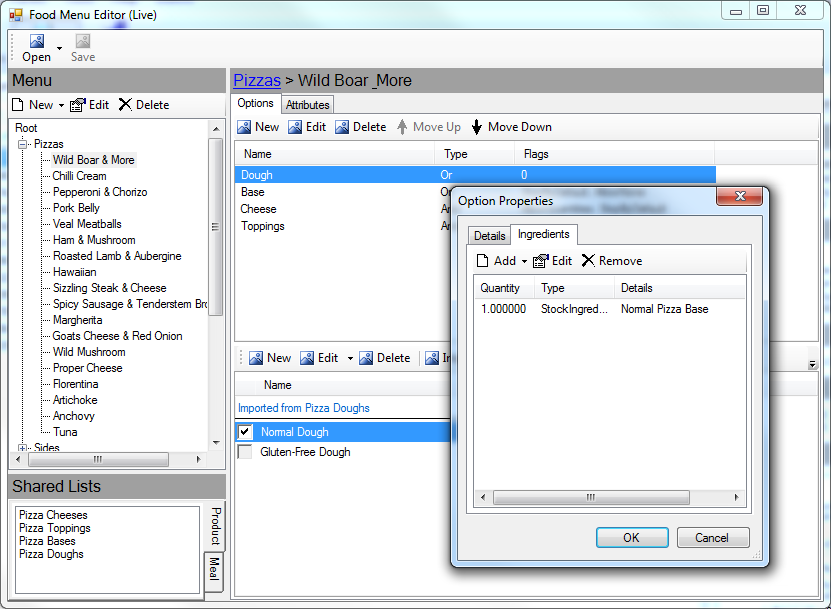
In that example, it has been set up so that choosing 'Normal Dough' on the 'Wild Boar & More' pizza will consume 1 'Normal Pizza Base'.