Menu Editor
If you need to add, remove, or change any products in your menu, it's easy to do this yourself using the menu editor tool.
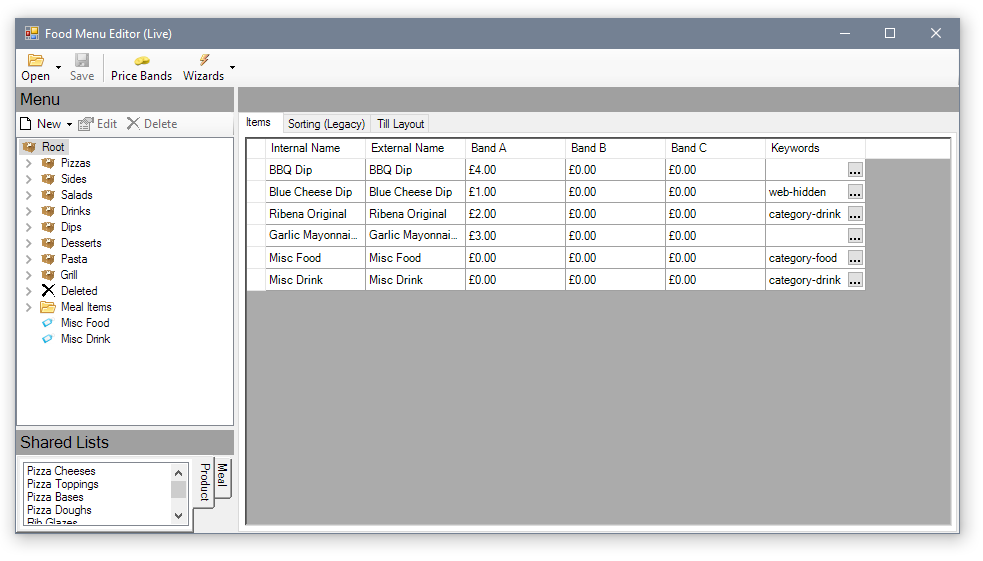
The tool may have been added to your 'Tools' menu during installation, but if not, you can always find it by clicking on the red cube icon in the top-right and selecting 'Find Tool...'. Find the tool called 'Menu Editor'. The editor window looks like this:
Editing prices
To simply edit the price of an existing item, find the group that contains it in the tree on the left. Here we have clicked the 'Pasta' group, and edited the price of the 'Italian Sausage' product:
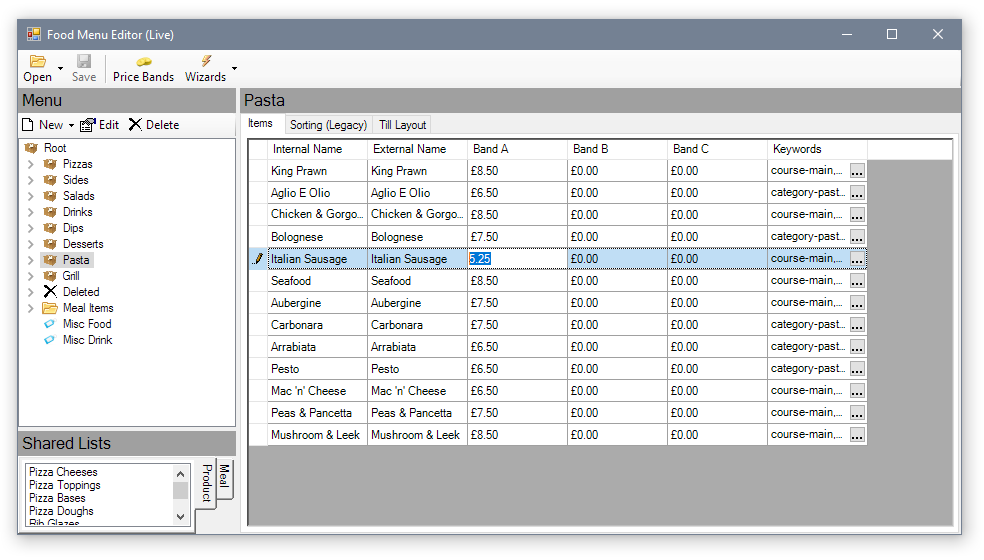
Be sure to press enter/return on the keyboard after typing a price, to ensure it is saved.
Adding new products
To add a new product, first select the group that you want to contain the new product in the tree on the left. For example, we will add a new dip, so it's important to first select the 'Dips' group on the left to make sure the new product is put in the correct group.
Then, click 'New', and select 'Product':
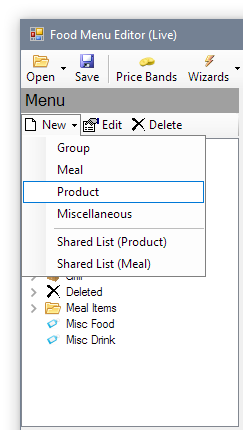
Note: the 'Meal' option is different from a product and used for grouping multiple items together. Typically, you should use 'Product' for most items.
The new product window will appear:
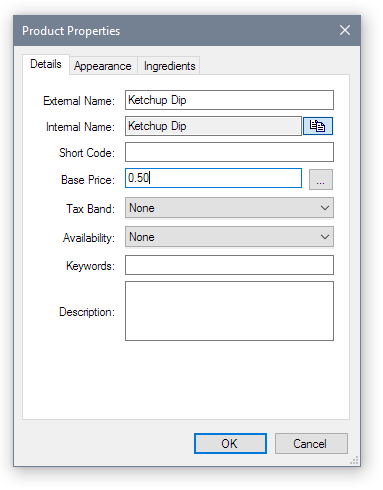
Fill in the necessary information, and click 'OK' to save it. The product will be created.
Deleting products
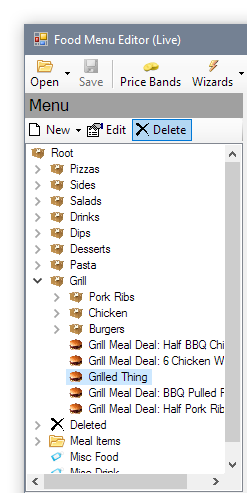
To delete an item, locate and select it in the tree on the left, then click 'Delete' in the toolbar above:
Saving Your Changes
When you are happy with the changes you have made, click the 'Save' icon in the main toolbar to save.
Vantage tills cache certain menu data to increase performance; if your changes do not show up on your till after saving, restart your till.