Till Panel
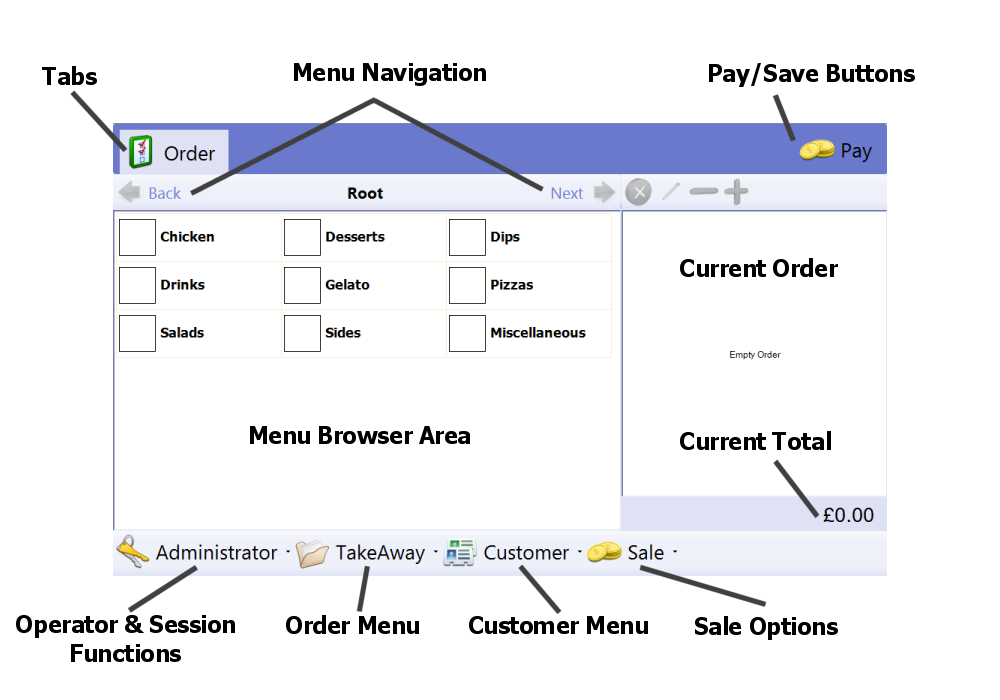
This image shows the default till screen, and the major parts:
Placing an Order
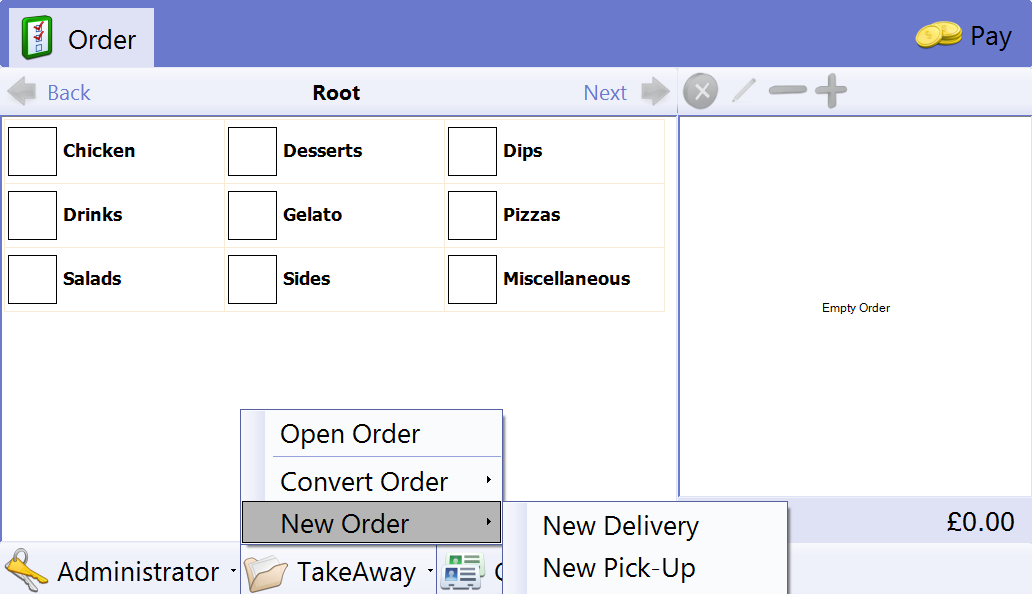
Make sure the correct order type is selected. By default, the till starts with an empty takeaway order. To change the current order type, click the order menu at the bottom of the screen, choose 'New Order', and choose the correct type:
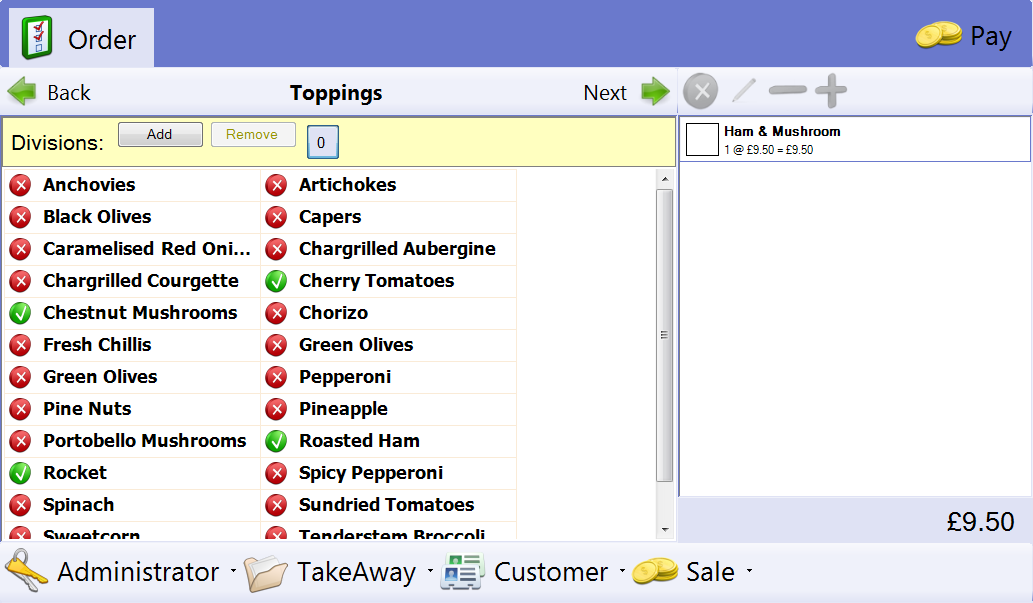
Use the main menu area of the screen to add items to the order. If only one selection can be made on the current screen, simply pressing it will go to the next stage. If there can be multiple choices made on the current screen, touch the options to add or remove them, then use the 'Next' button to proceed to the next step.
Once your order is complete, click the 'Pay' button in the top-right of the screen:
The payments screen appears:
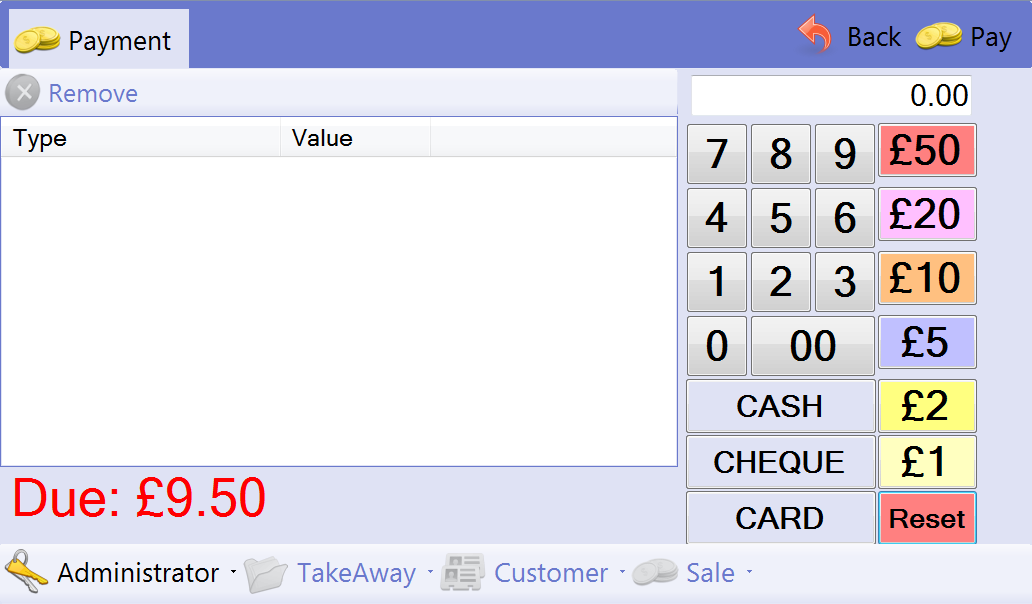
The amount still due appears in large text in the bottom-left. Add payments by typing the amount with the numeric keypad, then pressing the payment method. There are shortcut buttons for cash amounts down the right hand side.
If the order total is met or exceeded, the 'Due' text will show the change that should be given to the customer, if any.
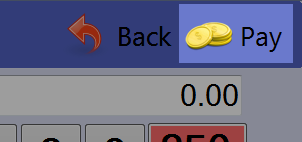
If you want to leave the payment screen and go back to the order, click the 'Back' button in the top-right:
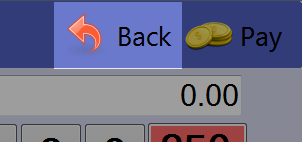
When you are finished entering payments, click the 'Pay' button again - the order will be committed, a receipt will be printed, the cash drawer will open for cash payments and any card payments will be processed. After this, a confirmation screen is displayed:
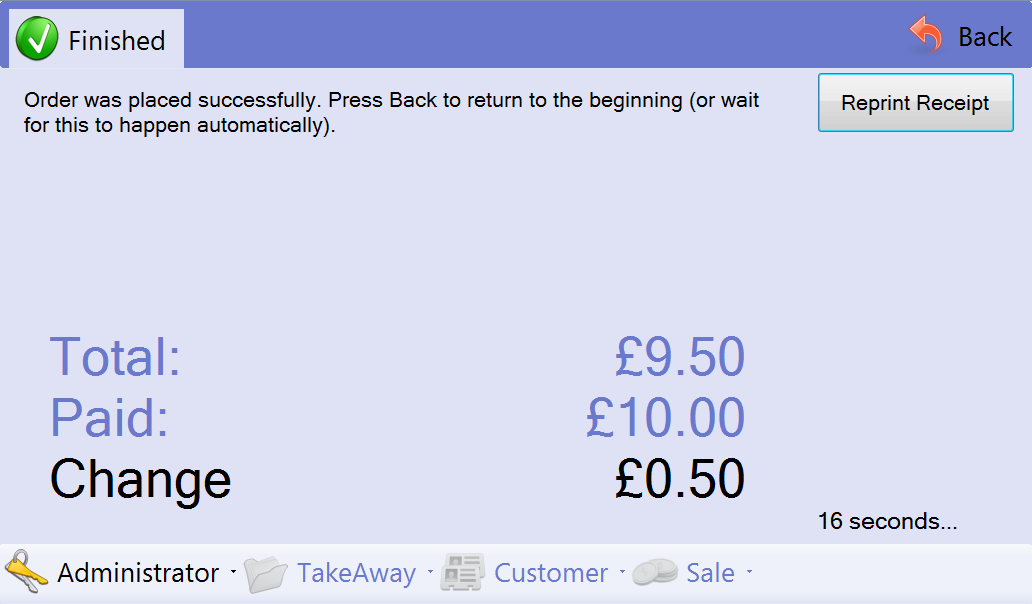
This screen shows a summary of the transaction. If you want to print another copy of the customer's receipt, click 'Reprint Receipt'. After 20 seconds, the till will automatically return to the order screen. To skip the wait and return immediately, click 'Back'.
Pickups
Create a new pickup order by choosing 'New Order' -> 'New Pickup' from the order menu at the bottom of the screen. Add items to your order as described in the previous example.
Pickups have an extra tab at the top of the screen. If you click the 'Pickup' tab, the screen will switch to the pickup details, where you can enter the customer's information:
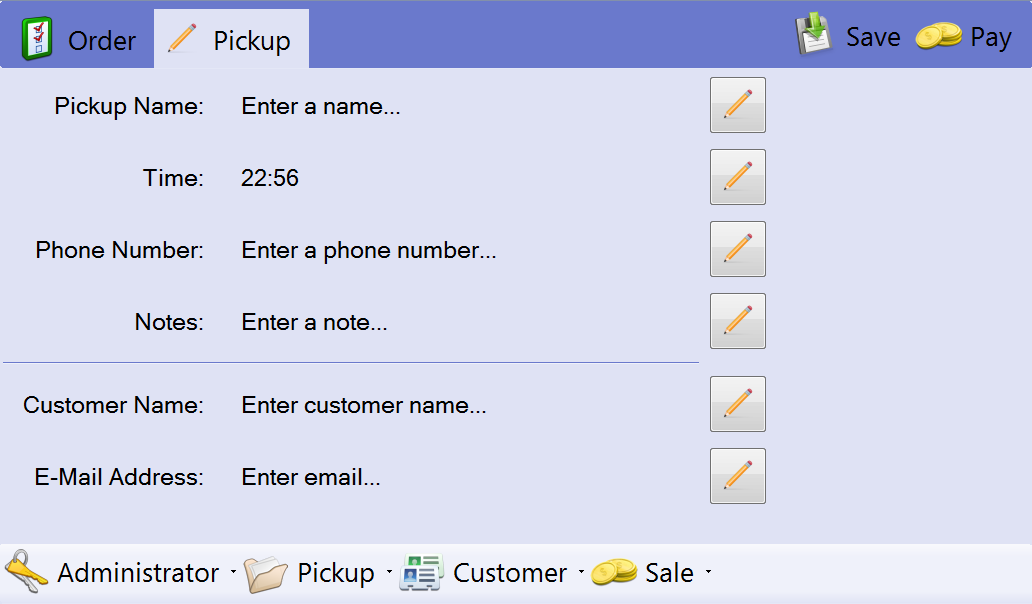
Click the pencil icon next to each row to edit that item. A pickup name and time are required, but everything else is optional. If you enter a phone number, a customer account will be created when the order is saved.
When you are finished adding items to the order, and have completed all the necessary pickup details, save the pickup by clicking 'Save'. A ticket for the pickup will be printed, and the order will be saved. The till then returns back to its default state, ready for a takeaway order.
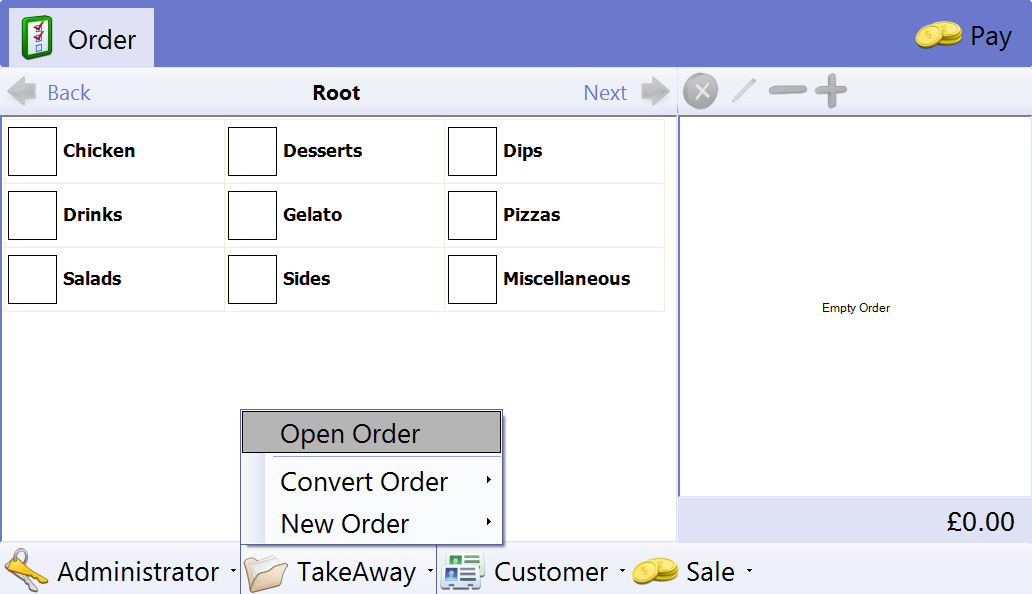
When the customer arrives to collect and pay for their pickup, open the pickup back up by clicking the order menu at the bottom of the screen, then choosing 'Open Order':
This will show all currently open orders:
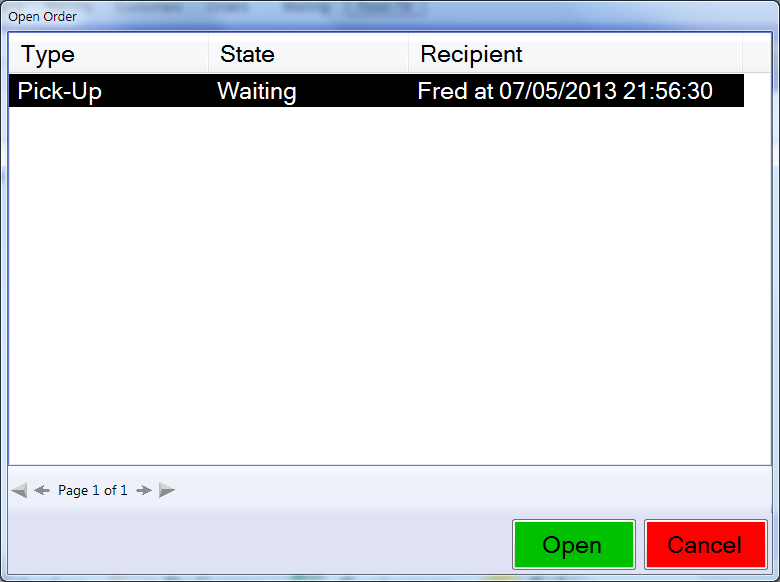
Select the correct order, and click 'Open'. The order will be opened up in the main till screen. You can edit the order here if you wish. Once you are ready to pay for the order, click 'Pay' in the top-right and proceed with payment as usual.
Deliveries
Create a new delivery order by choosing 'New Order' -> 'New Delivery' from the order menu at the bottom of the screen. Add items to your order as described in the previous example.
Deliveries have an extra tab at the top of the screen. If you click the 'Delivery' tab, the screen will switch to the delivery details, where you can enter the customer's information. This works just like the pickup details screen described above.
A common way to enter the customer's address is to look it up by postcode. To do this, click the pencil on the address row, and chooes 'Postcode Lookup':
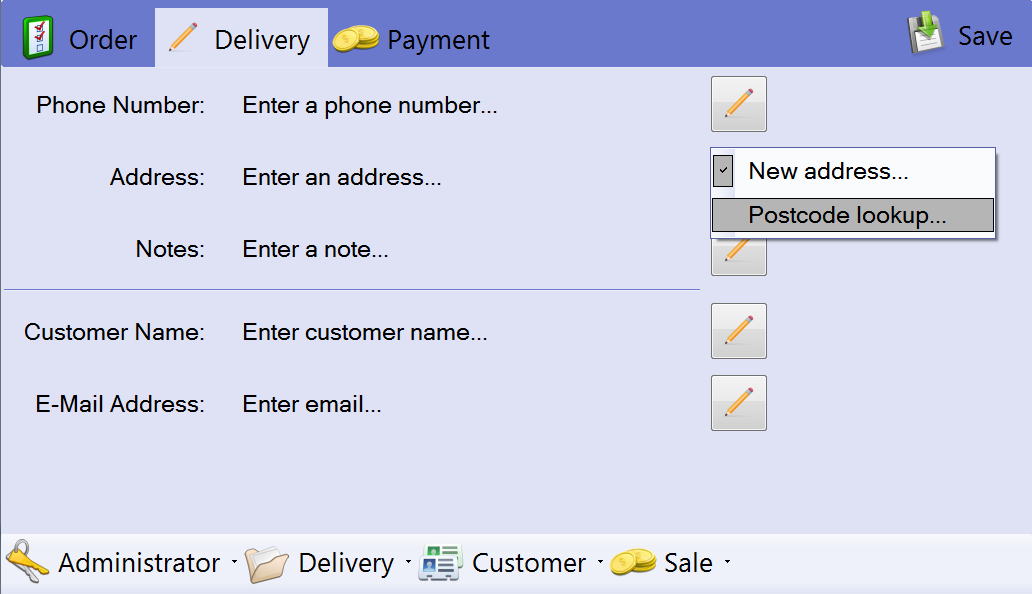
A screen will appear where you can enter a postcode. Capital letters and spacing are not important.
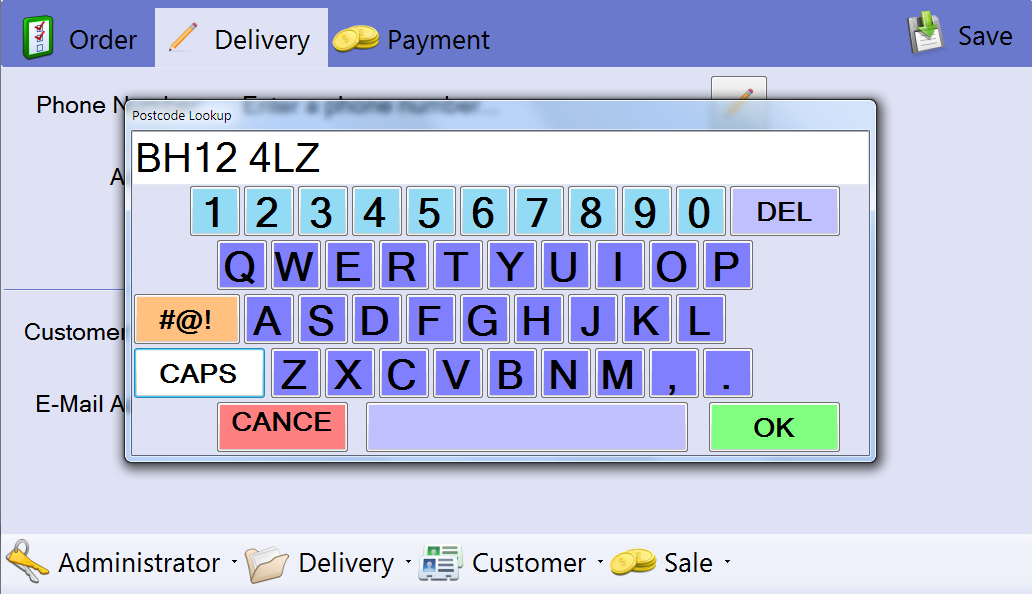
Enter the postcode and press 'OK'. If there was a successful match, the address editor will appear with the customer's address already present, like this:
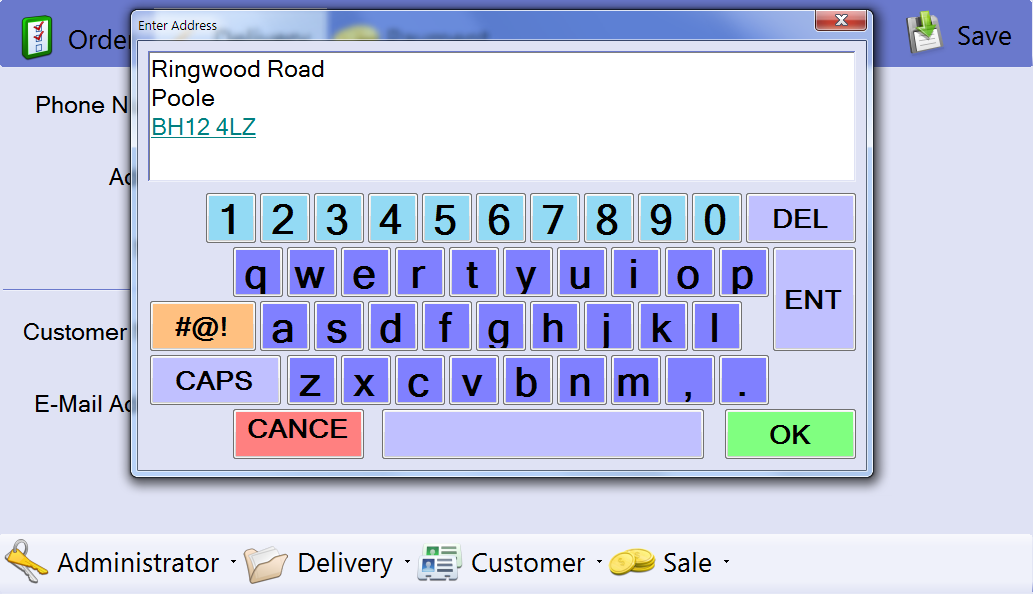
All that you need to add is the building number. The input cursor is already positioned at the start of the address, so there is no need to move it - just type the number.
Deliveries are unique in that they require payment methods to be entered before they are saved. Switch to the payments tab by clicking 'Payment' at the top of the screen. If the customer is paying over the phone by card, enter these payments first. If the rest of the money will be paid as cash to the delivery driver, enter cash payments for the correct amounts. The payments total must exactly equal the order total before the order can be saved.
Click 'Save' in the top-right to commit the order.
Finding Existing Customers
Whilst you are taking an order, you can look up customer accounts. To do this, click the customer menu at the bottom of the screen and chose 'Find by Address' or 'Find by Phone':
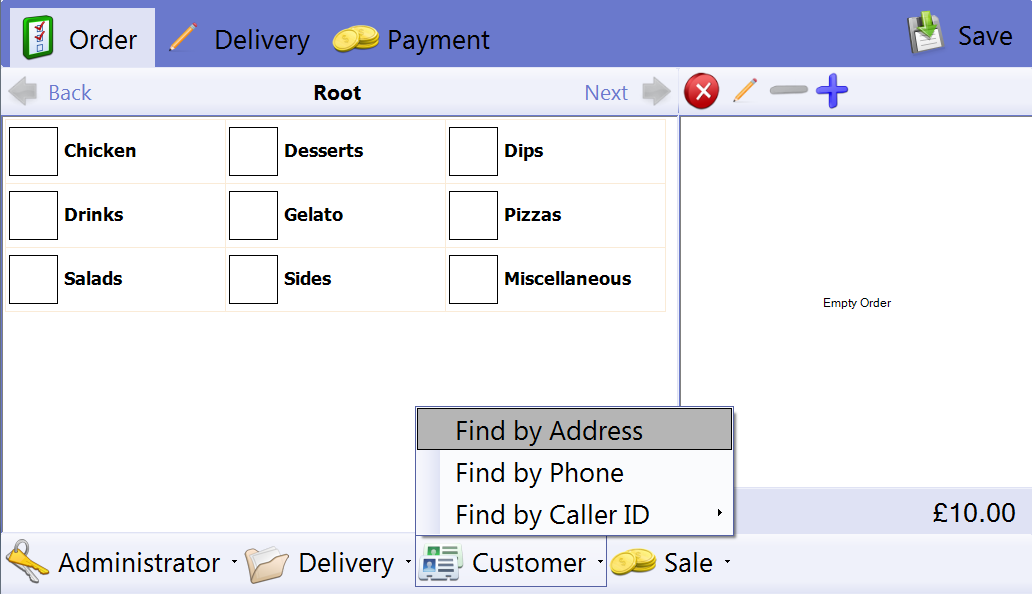
A window will appear that contains a keyboard a results list. Start typing a part of the address or phone number (whichever you chose), and the results will automatically update as you type. When you see the customer you are looking for, select it and choose 'OK'.
That customer then becomes 'locked' - if you place the order whilst the customer is locked, the order and customer will be associated with each other.
If you are placing a pickup or delivery, and you have a customer locked, clicking the pencils by the address and phone number rows will show a list of that customer's saved addresses or phone numbers. To use one, just choose it from the menu.
Converting Orders
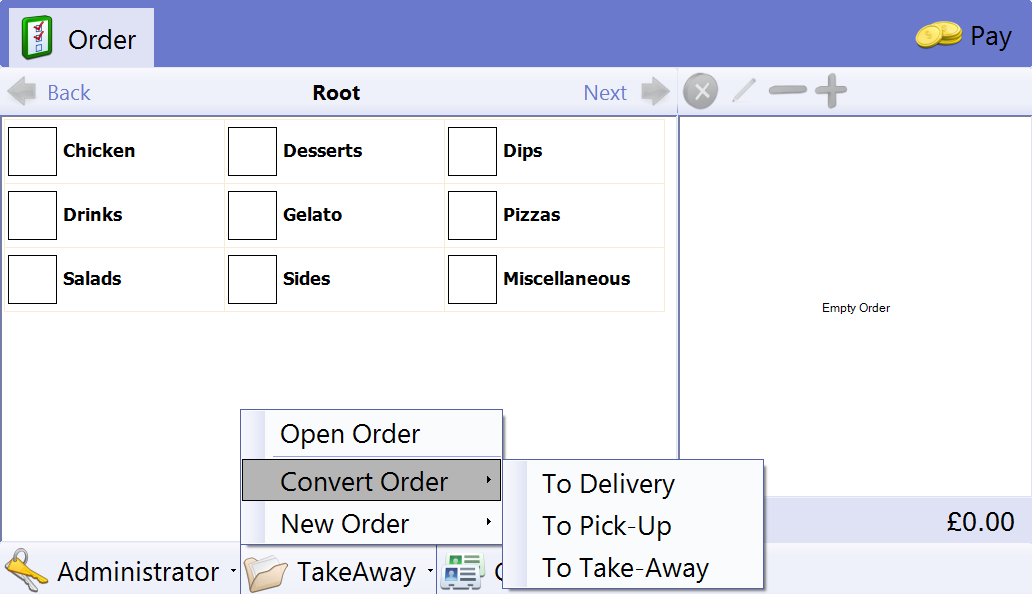
Sometimes you will start an order of a certain type, like a delivery, and the customer will change their mind and decide to collect it instead. To change the type of the currently open order, choose the order menu at the bottom of the screen, choose 'Convert Order', then choose the type you want to convert to. Be aware that any information specific to the old type will be lost. For example, if you were making a delivery and had entered an address, then convert to a pickup, the address will be lost because pickups do not have an address. If you were to switch back to delivery, you would have to enter the address again.
General Till Controls
The right hand side of the main menu screen shows the items currently in the order. If you click them, the controls just above will become available. Ther are in order:
- Delete Item
- Edit Item
- Decrease Quantity
- Increase Quantity
If you click an item twice, it will expand into a detailed view, like this:
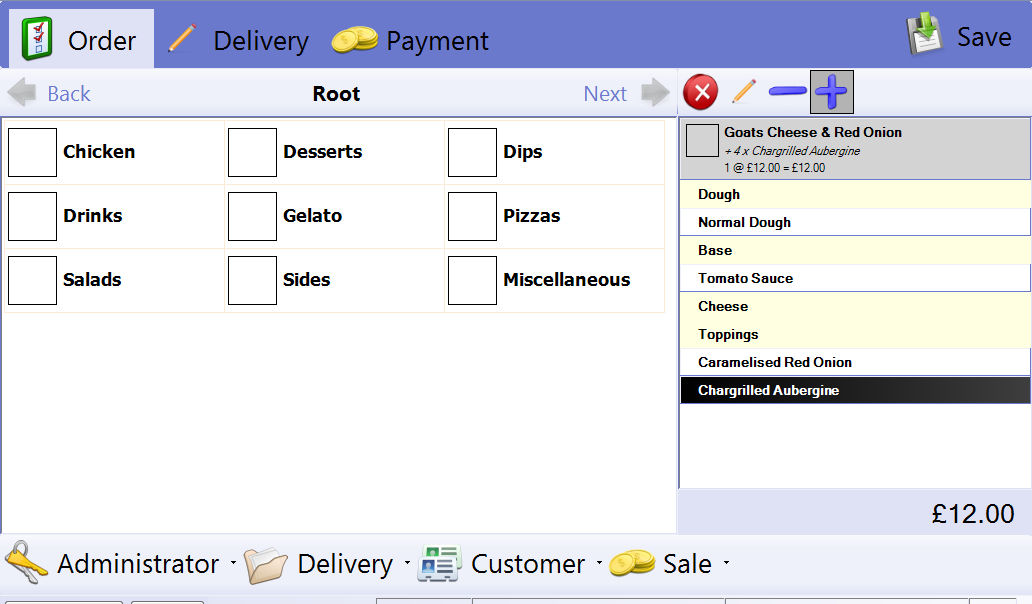
Here you can see all the individual options on the item. You are also able to select individual options, and where the menu allows, change their quantities. In the example above, we have added 4 x Chargrilled Aubergine.
Videos