Associating Food & Drink with Stock
Food and drink items in your menu can be associated with corresponding stock items. Sometimes the link is one-to-one, such as for a can of drink, and sometimes a menu item is composed of several stock ingredients.
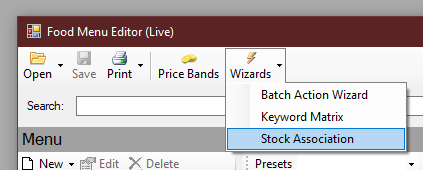
The menu editor provides a tool to simplify the process of associating food and drink with stock, called the Stock Association Wizard:
IMAGE OF WIZARD BUTTON
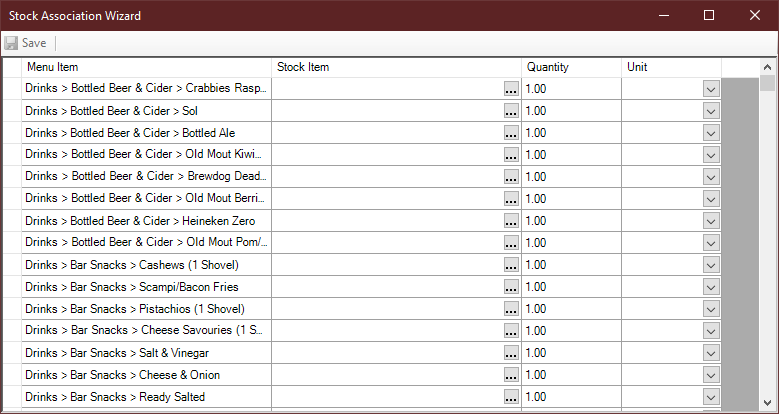
You will see a list of all your menu items, and initially an empty space next to each item:
IMAGE of default
Simple Items
To link a menu item to a stock item, simply start typing the name for the stock item in the empty column next to the name of the menu item. If you already have some stock items, Vantage will suggest matching items. If there is no suitable suggestion, type the name and press RETURN and you will see a prompt to create a new item.
As a shortcut, to create a new stock item with the same name as the menu item, enter the name as a single quote ( ' ).
To demonstrate, we will link a simple item on this account, 'Bar Snacks -> Ready Salted', to a stock new stock item. To do this we will type ' next to this menu item and press enter:
IMAGE of typing

We are prompted to create a new item with the same name:
IMAGE of prompt
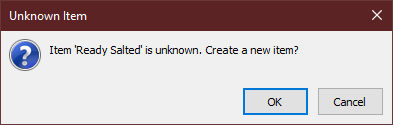
For this simple example we can just accept all of the default options for the new stock item:
IMAGE of properties
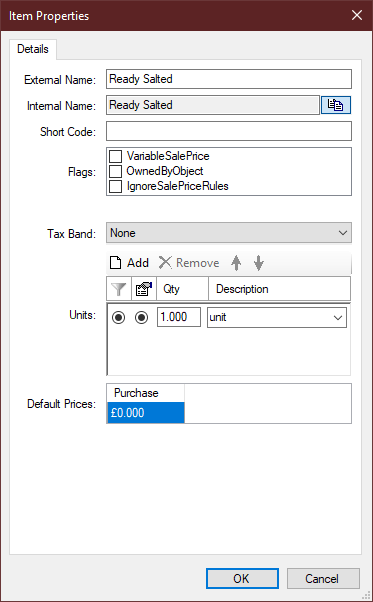
Because selling one packet of crisps should exactly use one packet of crisps from stock, we will leave the Quantity column as 1, and this example is complete.
Complex Items
As a more complex example, we will use Carlsberg. The menu has both pint and half pint items, but both of these items draw from common stock. Also whilst it is sold in pints, it is purchased in kegs, so we need to tell Vantage the relationship between these units.
Starting with the pint menu item, enter Carlsberg in the Stock Item column and accept creating a new stock item:
IMAGE of carlsberg
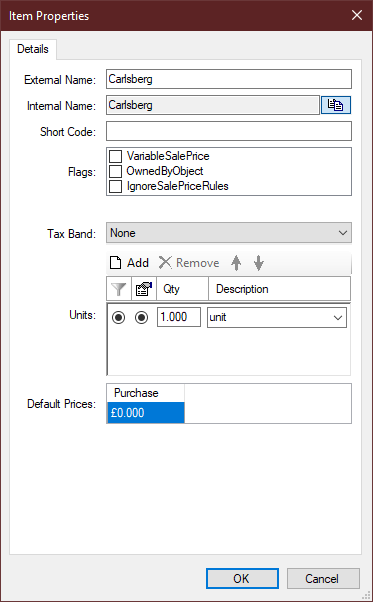
We will modify the Units section to look like this:
IMAGE of units
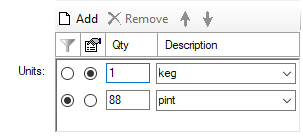
Here the relationship between units is expressed; 1 keg contains 88 pints. The two columns at the start tell Vantage how to track and display the units. The first column with the filter icon is the unit that should be used for tracking stock levels - in this case pints have been chosen. The second column is the unit preferred for display purposes, in this case keg has been chosen. Click OK to save this item.

The row for the pint menu item is now correct. To set up the association for the half pint item, start typing 'Carlsberg' into the column next to the half pint item. After a few letters, Vantage will suggest the item we just created:
IMAGE of suggestion

Accept the suggeston. The half pint menu item is now linked to the same stock item as the pint, however the quantity is not yet correct. Change the quantity to 0.5 to show that this menu item should use 0.5 of the stock item, measured in pints. The two rows should end looking like this:
IMAGE of both rows.

Manually Editing Multiple Ingredients
Notice: This section was created for an older version of Vantage and some interfaces may have changed. However the same steps and principles still apply.
If you have menu items that require many ingredients in different amounts, you can manually adjust the stock ingredients of any menu item.
In the menu editor, select a food item in the tree on the left, and click the 'Edit' button above. You will see the product (or meal) properties window, which looks like this:
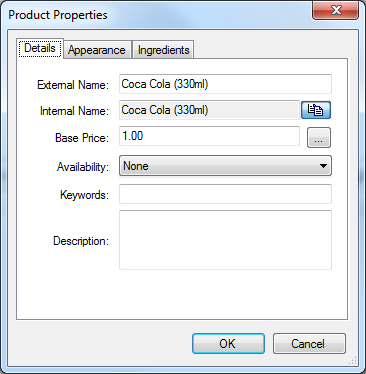
We are only interested in the 'Ingredients' tab at the top. Switch to it, click the 'Add' button, then choose 'Stock Item'
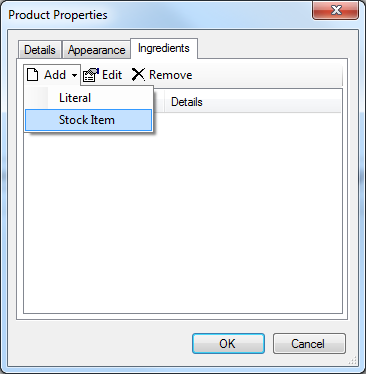
You will then see this window:
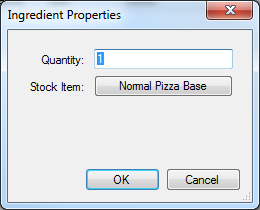
Click the button to choose the stock item to associate with the food item. In the example, 'Normal Pizza Base' was selected. Enter a quantity of the selected stock item to be consumed for every food item sold. The quantity should be in the units you set up when you created the stock item. For example, if we were associating stock with a pepperoni pizza topping, the topping stock item was set in 'kg' units, and you wanted 100g to be used each time the food item is sold, enter '0.1'.
Associating Stock with Food Options
So far we have associated stock with a food product or meal. This means that every time that product or meal is sold, stock will always be consumed.
In many cases, the stock consumed should depend on the options that the customer chose. In these cases, we must associate the stock item with the food options. Most of the process is the same, except started in a different way.
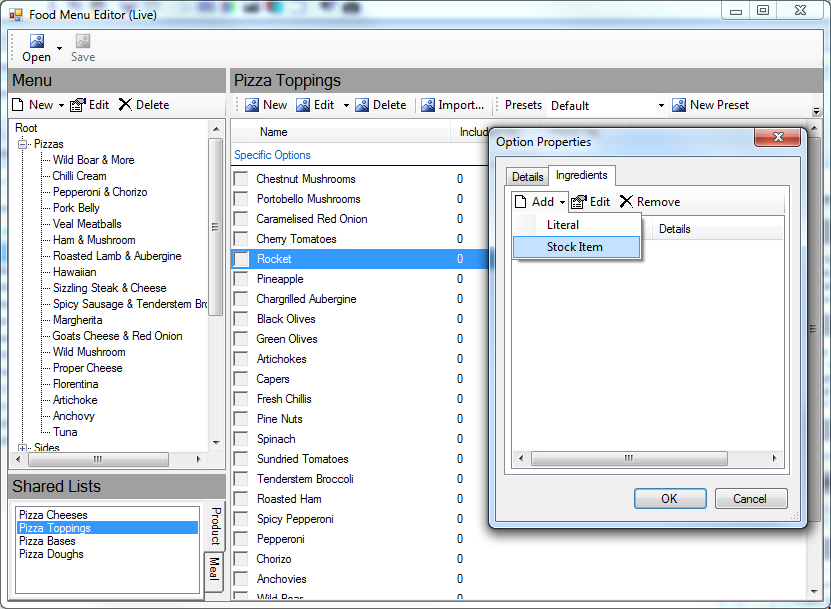
To associate stock with an option in one of the shared options lists, such as pizza toppings, click the list in the bottom left, choose the appropriate option on the right side, and click the edit button above the options. That will look like this:
To associate stock with an option in one of the products, select the product, choose the desired option list, select the option, and click the 'Edit' button above the options. That will look like this:
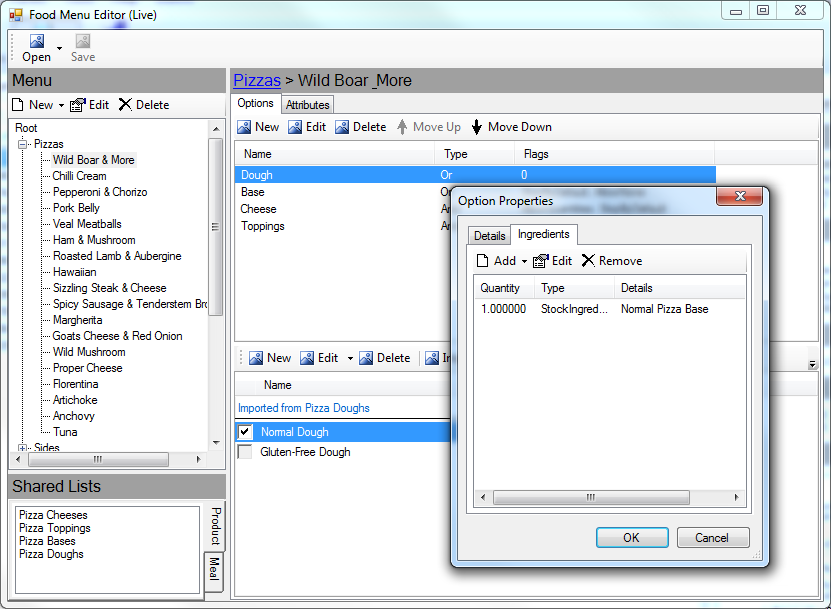
In that example, it has been set up so that choosing 'Normal Dough' on the 'Wild Boar & More' pizza will consume 1 'Normal Pizza Base'.