AD102 Caller ID
The Artech AD102 caller ID adapter will enable Vantage to read the number of incoming calls from your landline, allowing you to instantly bring up customer details and past orders as soon as you receive a call.
Hardware Connection
In the box for your caller ID adapter, you should have the following items:
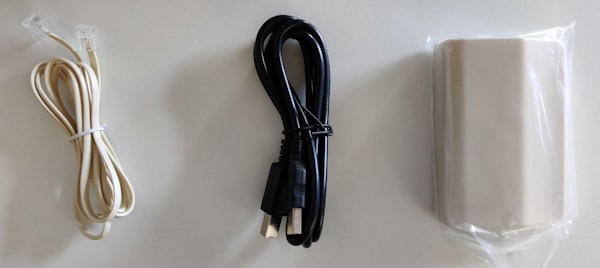
The adapter needs to be inserted in between your phone line socket and your existing phone, and also connected via the USB cable to your EPOS terminal.
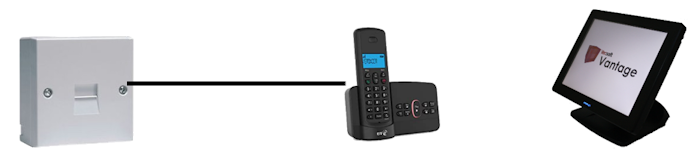
Your existing setup will be something like this, with your phone connected directly to your phone socket (possibly through a broadband filter or other splitter).
The line to the phone should be moved to go into the 'Line' connector on the AD102, then the cable supplied in the box should be connected between the 'Phone' connector on the AD102 and your phone:
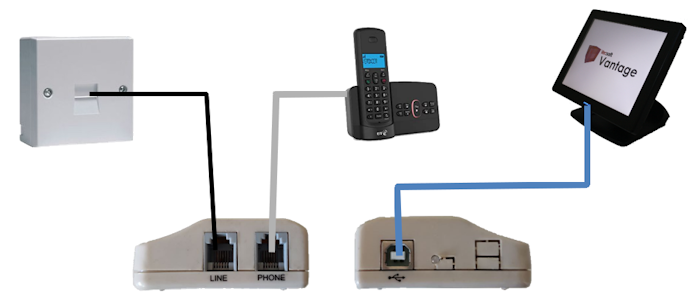
Finally, ensure the provided USB cable connects the AD102 to your EPOS terminal. You can use any USB socket on the EPOS.****
Software Setup
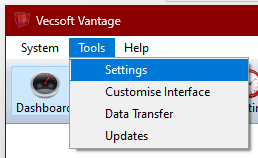
To add the device in Vantage, go to the 'Tools' menu and select 'Settings':
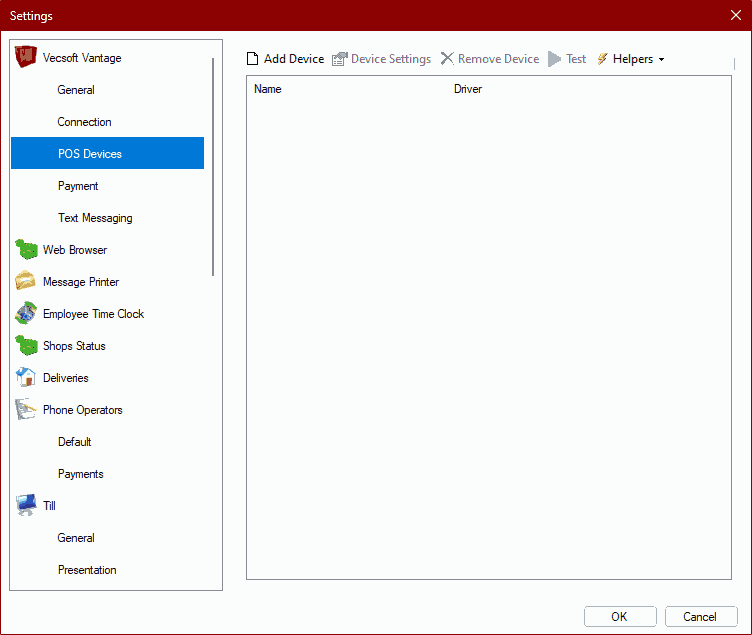
On the left find the 'POS Devices' section, and above the list of devices (which may be empty), click 'Add Device'.
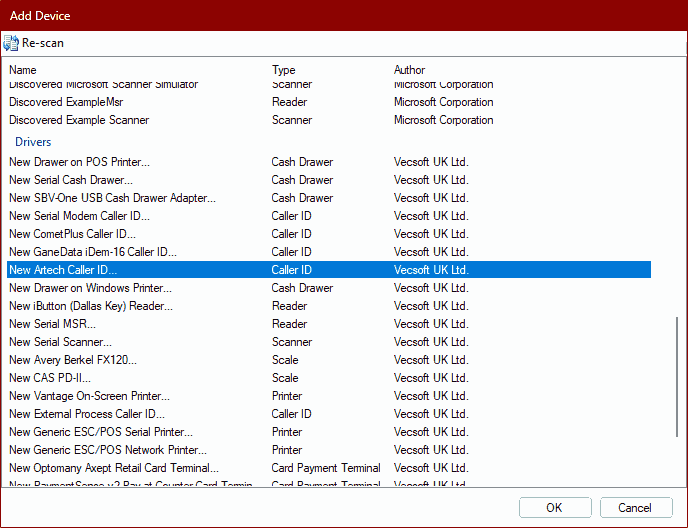
Find the item 'New Artech Caller ID...', and click OK.
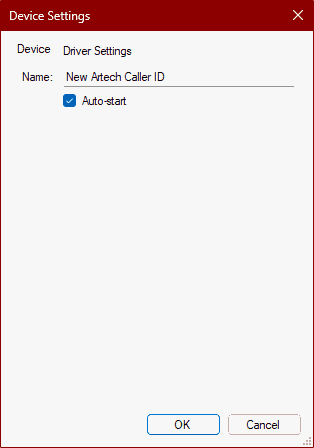
Ensure the 'Auto-start' checkbox is ticked, then press OK.
You can now press OK to close the settings window. The caller ID device should work straight away.
Additional Help
If you require further assistance in setting up your caller ID device, please call support on 01202 835550.