Table Reservations
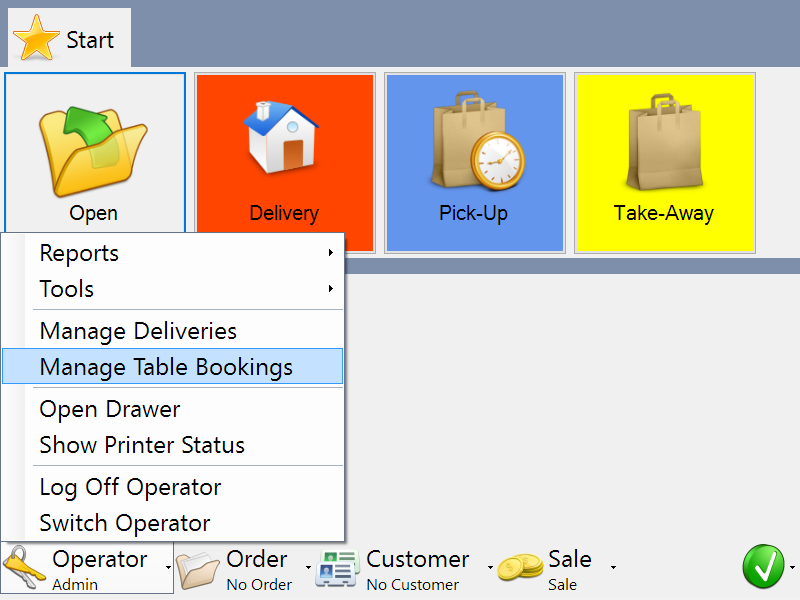
The till includes facilities for managing table bookings. To access the bookings screen, select 'Manage Table Bookings' from the operator menu, as shown below:
You will then see a list of all upcoming and recent past table reservations, sorted with the earliest at the top:
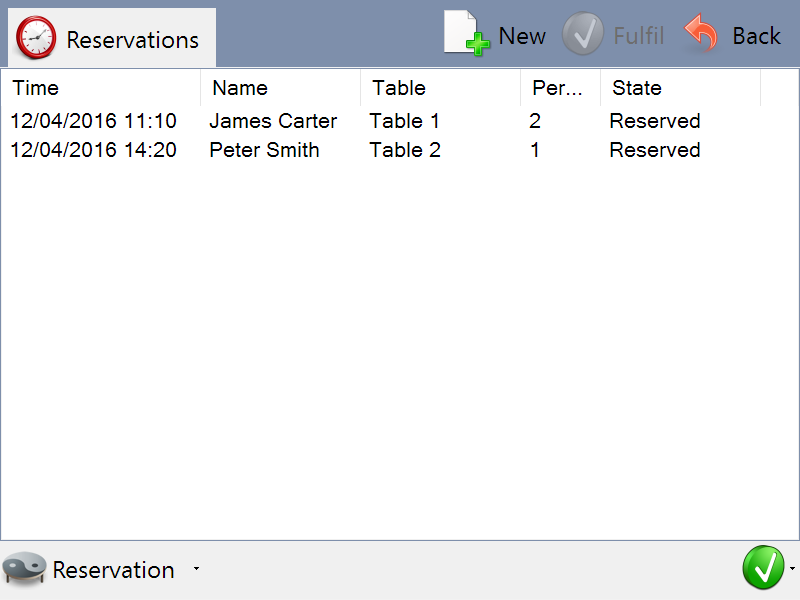
In this example, you can see that there are already two reservations waiting.
To return to the main till interface, press the 'Back' action button in the top right.
Creating a Reservation
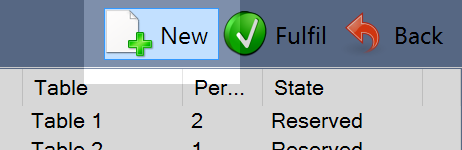
To create a new table reservation, click the 'New' action button in the top right:
You will see a screen that allows you to enter the details of the reservation:
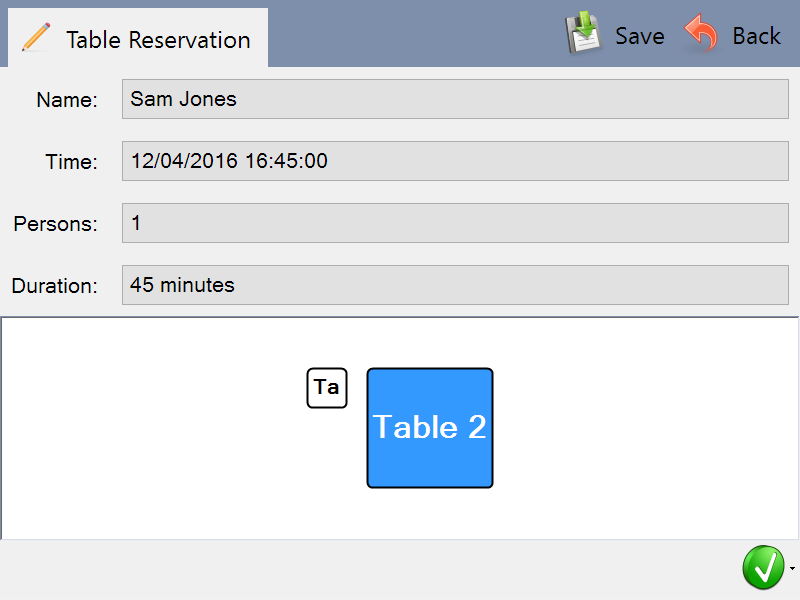
Click on any of the values displayed to change them, and select a table by clicking it in the table plan displayed in the bottom half of the screen.
When all values are entered, press the 'Save' action button in the top left to save the reservation. You can cancel by pressing 'Back' instead, which returns to the previous screen without saving the new reservation.
Fulfilling a Reservation
When a customer with a reservation arrives, enter the 'Manage Table Bookings' screen as shown in the first step. Locate the customer's reservation in the list, and then press the 'Fulfil' action button in the top right of the screen:
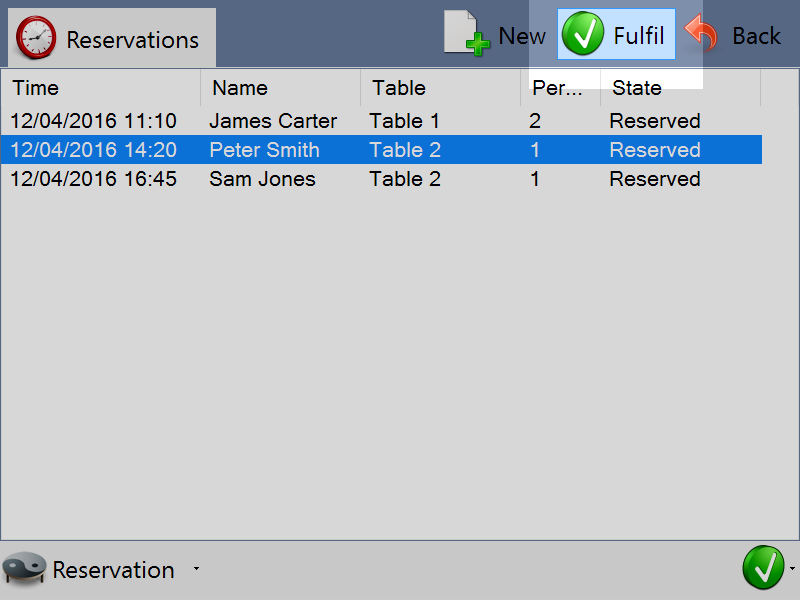
The till will begin a table order as usual, but with the correct table, customer account, and other details pre-selected for you. Proceed with creating the table order in the usual way.
When you next return to the reservations list, you will see that the selected reservation now has the 'Fulfilled' status, and can no longer be edited. It will disappear from the list after a short period of time.
Cancelling a Reservation
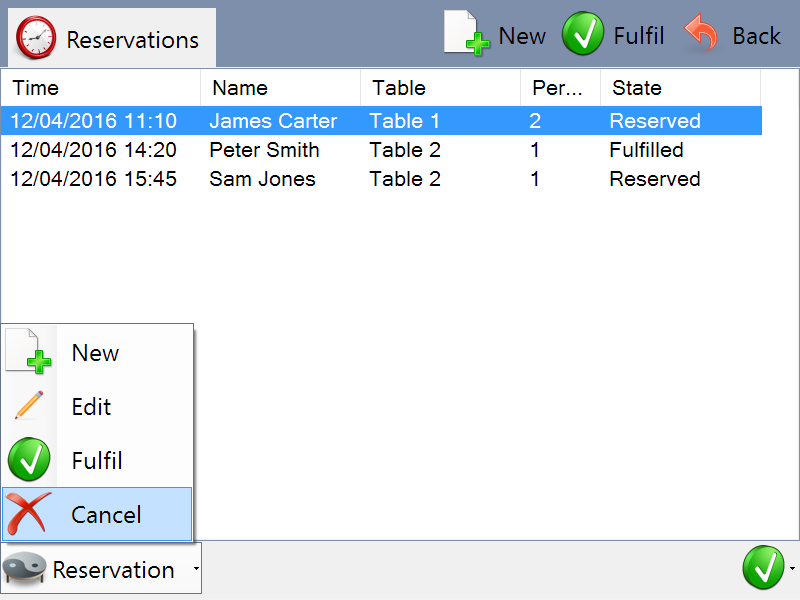
After a reservation has been created but before it has been fulfilled, you may cancel it, for example if the customer informs you that they can no longer keep the appointment.
To cancel a reservation, select the reservation you wish to cancel in the list, and find the 'Cancel' menu option in the 'Reservation' menu in the bottom left:
Modifying a Reservation
After a reservation has been created but before it has been fulfilled, you can edit its details, for example if the customer has requested a different time or you need to reallocate the reservation to a different table.
To edit, select the reservation you wish to modify in the list, and find the 'Edit' menu option in the 'Reservation' menu in the bottom left:
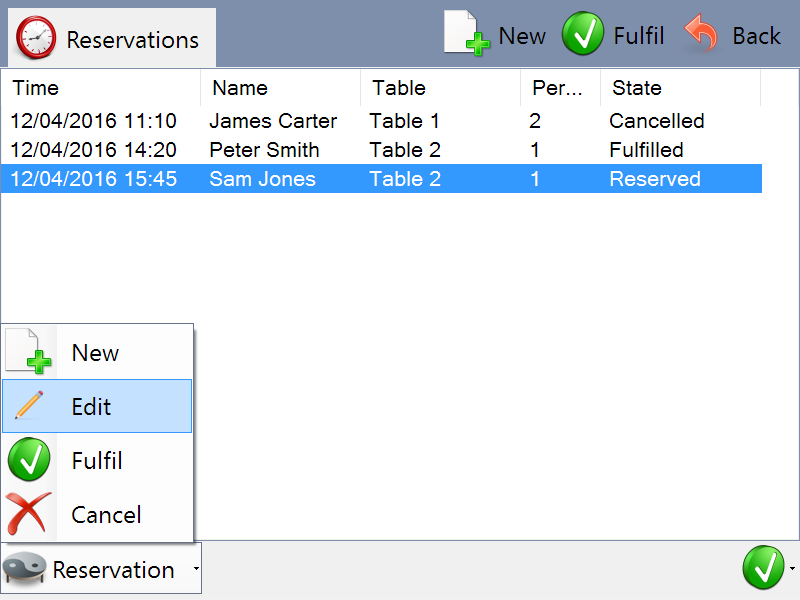
You will see the same screen that was used to create a new reservation, but when you press 'Save', the selected reservation will be updated instead of creating a new one.